
Set UpYour Board
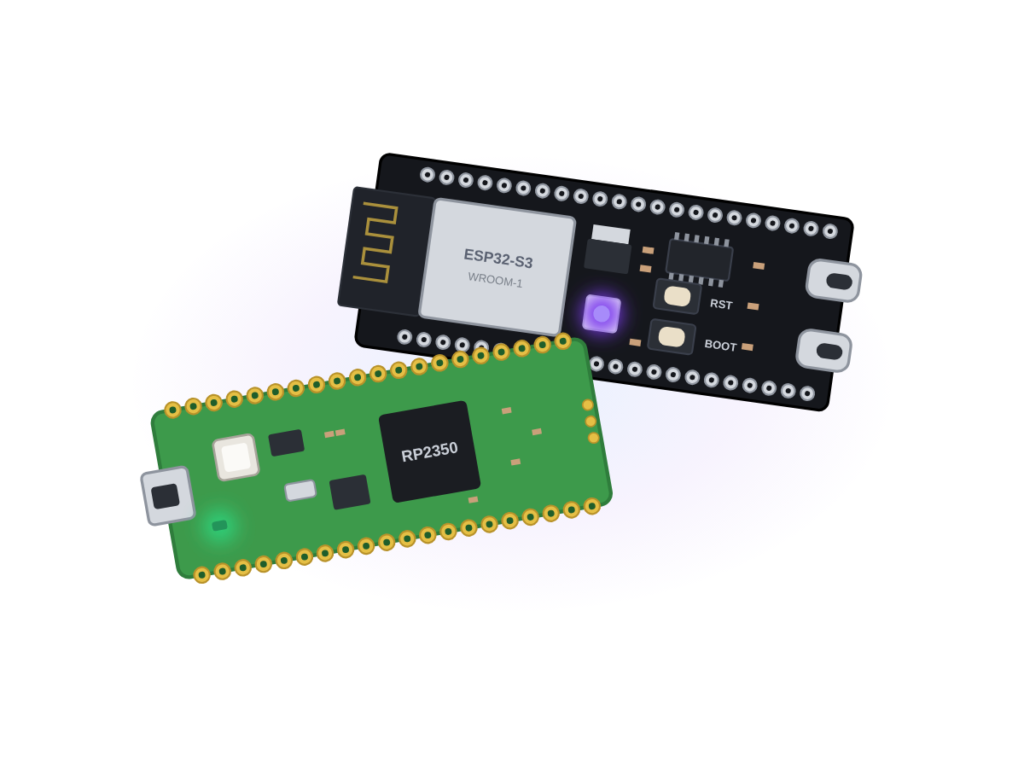
Can a tiny board the size of a stick of gum understand Python? Not yet. Out of the box, it doesn’t speak any language you can type. In this lesson you’ll install MicroPython on it, test it, and connect it to the FusedFormations coding page. You only do this once, and every lesson after this one builds on it.
Use a computer with Chrome or Microsoft Edge. Our coding page talks to your board through a browser feature called Web Serial. It works in Chrome and Edge on Windows, Mac, Linux and Chromebooks. It does not work in Safari, or on phones and iPads.
Chromebooks can’t run Thonny. Email us for a board with MicroPython already installed, or do Steps 01–03 once on another computer.
You will need
| Item | Notes |
|---|---|
| Microcontroller board | Raspberry Pi Pico 2 W (the board in our kits), or any Pico, Pico W, Pico 2 or ESP32-S3 board |
| USB data cable | Micro-USB for Pico, USB-C for most ESP32-S3 boards. Charge-only cables won't work. |
| Computer | Windows, Mac or Linux for the one-time install (Chromebooks: see the note below the title) |
| Thonny | Free coding app from thonny.org |
Steps
-
Install Thonny
Go to thonny.org, download the version for your computer, and install it like any other app. You’ll only use it in this lesson.
-
Put MicroPython on your board
Pick the box for your board.
Raspberry Pi Pico 2 W, Pico, Pico W or Pico 2
- Hold down BOOTSEL (Fig. 1).
- Keep holding it while you plug the USB cable into your computer. Then let go.
- The board appears like a USB drive named
RPI-RP2(RP2350on a Pico 2 or Pico 2 W). - In Thonny, open Tools → Options → Interpreter. Choose MicroPython (Raspberry Pi Pico).
- Click Install or update MicroPython. Pick your board’s model, then click Install.
- The board restarts by itself. It now runs MicroPython.
Another way: download the
.uf2file for your board from micropython.org and drag it onto theRPI-RP2drive.ESP32-S3 board
- Plug the board into your computer.
- In Thonny, open Tools → Options → Interpreter. Choose MicroPython (ESP32).
- Click Install or update MicroPython (esptool).
- Pick your board’s port, choose ESP32-S3 as the family, and the latest version. Click Install.
- Wait for 100%. This takes a minute or two.
Board not showing up? Hold BOOT, tap RST, then let go of BOOT. Then try the install again.
-
Say hello
At the bottom of Thonny is the Shell. Click in it, type this, and press Enter:
print("Hello from my board!")If the words come back, your board just ran its first line of Python.
-
Close Thonny completely
Don’t just minimize it. Quit the app. The next figure shows why.
Fig. 4 Your board has one USB connection, and only one program can hold it. While Thonny has it, the coding page can’t get in. Quit Thonny and the connection is free again. Most “my board won’t connect” problems are just Thonny still running in the background.
-
Connect on the FusedFormations coding page
- Open the FusedFormations coding page in Chrome or Edge.
- Click Connect. A small window lists your devices. Pick your board and click Connect.
- Type
print("Connected!")and run it.
The browser always asks before it lets a website talk to a USB device. That pop-up is a safety feature: no site can reach your board unless you pick it.
You did it! Your board is ready for every lesson. From now on, you only need the coding page.
What just happened?
Your board’s processor only understands machine code: long lists of numbers. Nobody wants to write that. MicroPython is a program that lives on the board and works like a translator. You type Python, and MicroPython turns it into instructions the processor can run, right there on the board.
Firmware
Firmware is software that lives inside a device and starts the moment it gets power. Your TV remote, microwave and game controller all run firmware. In Step 02 you replaced your board’s firmware with MicroPython, and it stays there even when the board is unplugged.
The .uf2 file you might have seen is just a package format that the Pico knows how to install when you drop it onto the board’s drive.
A language shrunk to fit
Python normally runs on computers with billions of bytes of memory. In 2013, physicist and programmer Damien George set out to squeeze it onto chips with only a few hundred thousand bytes. He funded the project through Kickstarter, and it became MicroPython. When Raspberry Pi released the Pico in 2021, MicroPython was one of the first languages it officially supported.
Try this next
Your board is connected, so ask it some questions. Run each line on the coding page:
2 ** 100                          # can it handle huge numbers?
import os; os.uname()             # what board am I?
import machine; machine.freq()    # how fast is my brain? (in Hz)
That last number is how many steps your board’s processor takes every second. Divide it by 1,000,000 to get megahertz. How does it compare to a laptop, which runs at billions of steps per second?
Stuck? Check these
- Charge-only cable. The #1 problem. If the board never shows up anywhere, try a different cable.
- Thonny is still running. Quit it fully (Fig. 4), then click Connect again.
- Wrong browser. Use Chrome or Edge on a computer.
- Pico not in BOOTSEL mode. Unplug, hold BOOTSEL, plug back in.
- ESP32-S3 won’t install. Use the BOOT + RST trick from Step 02.
- USB hub or front-panel port. Plug straight into the computer instead.
What you learned
- What firmware is, and how MicroPython acts as a translator on the board
- How to put a board into install mode
- Why only one program can use the board’s connection at a time
Official docs
- Raspberry Pi: MicroPython on PicoThe official install guide from the people who make the Pico.
- MicroPython: Pico firmware downloadsThe .uf2 files for every Pico model.
- MicroPython: ESP32-S3 firmwareFirmware and command-line install steps for ESP32-S3 boards.
- MicroPython: Getting started on ESP32The official ESP32 tutorial.
- ThonnyThe beginner Python app used in this lesson.
- MDN: Web Serial APIHow browsers talk to USB devices, and which browsers support it.
Further reading
- Make: Electronics by Charles Platt (Make: / O’Reilly)A classic hands-on book that teaches electronics through experiments. Great for curious kids and the grown-ups helping them.
Standards
This lesson supports these standards from the Massachusetts Digital Literacy and Computer Science Framework and related frameworks.
- MA DLCS 3-5.CS.a.4Identify and solve simple hardware and software problems that may occur during everyday use.
- MA DLCS 3-5.CS.a.5Describe the differences between hardware and software.
- MA DLCS 6-8.CS.a.3Identify and describe the function of the main internal parts of a basic computing device.
- MA DLCS 6-8.CS.a.7Identify steps involved in diagnosing and solving routine hardware and software problems.
Next up
Hello Pico. Blink an LED with a few lines of Python.
Want a hand?
Build it with us. Keep it. Explore more on your own.
Find your next build